

Trigger functions
Trigger tasks from your backend:
Trigger tasks from inside a another task:
Triggering from your backend
When you trigger a task from your backend code, you need to set theTRIGGER_SECRET_KEY environment variable. If you’re using a preview branch, you also need to set the TRIGGER_PREVIEW_BRANCH environment variable. You can find the value on the API keys page in the Trigger.dev dashboard. More info on API keys.
If you are using Next.js Server Actions you’ll need to be careful with
bundling.
tasks.trigger()
Triggers a single run of a task with the payload you pass in, and any options you specify, without needing to import the task.By using
tasks.trigger(), you can pass in the task type as a generic argument, giving you full
type checking. Make sure you use a type import so that your task code is not imported into your
application.Your backend
Your backend
tasks.batchTrigger()
Triggers multiple runs of a single task with the payloads you pass in, and any options you specify, without needing to import the task.Your backend
batchTrigger function using the third argument:
Your backend
Your backend
batch.trigger()
Triggers multiple runs of different tasks with the payloads you pass in, and any options you specify. This is useful when you need to trigger multiple tasks at once.Your backend
Triggering from inside another task
The following functions should only be used when running inside a task, for one of the following reasons:- You need to wait for the result of the triggered task.
- You need to import the task instance. Importing a task instance from your backend code is not recommended, as it can pull in a lot of unnecessary code and dependencies.
yourTask.trigger()
Triggers a single run of a task with the payload you pass in, and any options you specify.If you need to call
trigger() on a task in a loop, use
batchTrigger() instead which will trigger up to 1,000 runs in a single
call with SDK 4.3.1+ (500 runs in prior versions)../trigger/my-task.ts
./trigger/my-task.ts
yourTask.batchTrigger()
Triggers multiple runs of a single task with the payloads you pass in, and any options you specify./trigger/my-task.ts
batchTrigger, you can use the second argument:
/trigger/my-task.ts
/trigger/my-task.ts
yourTask.triggerAndWait()
This is where it gets interesting. You can trigger a task and then wait for the result. This is useful when you need to call a different task and then use the result to continue with your task.Don't use this in parallel, e.g. with `Promise.all()`
Don't use this in parallel, e.g. with `Promise.all()`
Instead, use
batchTriggerAndWait() if you can, or a for loop if you can’t.To control concurrency using batch triggers, you can set queue.concurrencyLimit on the child task./trigger/parent.ts
result object is a “Result” type that needs to be checked to see if the child task run was successful:
/trigger/parent.ts
unwrap method:
/trigger/parent.ts
/trigger/parent.ts
yourTask.batchTriggerAndWait()
You can batch trigger a task and wait for all the results. This is useful for the fan-out pattern, where you need to call a task multiple times and then wait for all the results to continue with your task.Don't use this in parallel, e.g. with `Promise.all()`
Don't use this in parallel, e.g. with `Promise.all()`
Instead, pass in all items at once and set an appropriate
maxConcurrency. Alternatively, use sequentially with a for loop.To control concurrency, you can set queue.concurrencyLimit on the child task.How to handle run failures
How to handle run failures
When using
batchTriggerAndWait, you have full control over how to handle failures within the batch. The method returns an array of run results, allowing you to inspect each run’s outcome individually and implement custom error handling.Here’s how you can manage run failures:-
Inspect individual run results: Each run in the returned array has an
okproperty indicating success or failure. -
Access error information: For failed runs, you can examine the
errorproperty to get details about the failure. -
Choose your failure strategy: You have two main options:
- Fail the entire batch: Throw an error if any run fails, causing the parent task to reattempt.
- Continue despite failures: Process the results without throwing an error, allowing the parent task to continue.
- Implement custom logic: You can create sophisticated handling based on the number of failures, types of errors, or other criteria.
/trigger/nested.ts
batch.triggerAndWait()
You can batch trigger multiple different tasks and wait for all the results:/trigger/batch.ts
batch.triggerByTask()
You can batch trigger multiple different tasks by passing in the task instances. This function is especially useful when you have a static set of tasks you want to trigger:/trigger/batch.ts
batch.triggerByTaskAndWait()
You can batch trigger multiple different tasks by passing in the task instances, and wait for all the results. This function is especially useful when you have a static set of tasks you want to trigger:/trigger/batch.ts
Triggering from your frontend
If you want to trigger a task directly from a frontend application, you can use our React hooks.Options
All of the above functions accept an options object:delay
When you want to trigger a task now, but have it run at a later time, you can use the delay option:

Delayed runs will be enqueued at the time specified, and will run as soon as possible after that
time, just as a normally triggered run would. They execute on the currently deployed version when
they start, not the version that was active when they were enqueued.
runs.cancel SDK function:
runs.reschedule SDK function:
delay option is also available when using batchTrigger:
If your payload contains Date objects, pass them directly rather than manually stringifying with
JSON.stringify(). The SDK handles Date serialization automatically. If you need to stringify
manually, convert Dates to ISO strings first (e.g., date.toISOString()).ttl
You can set a TTL (time to live) when triggering a task, which will automatically expire the run if it hasn’t started within the specified time. This is useful for ensuring that a run doesn’t get stuck in the queue for too long.
All runs in development have a default
ttl of 10 minutes. You can disable this by setting the
ttl option.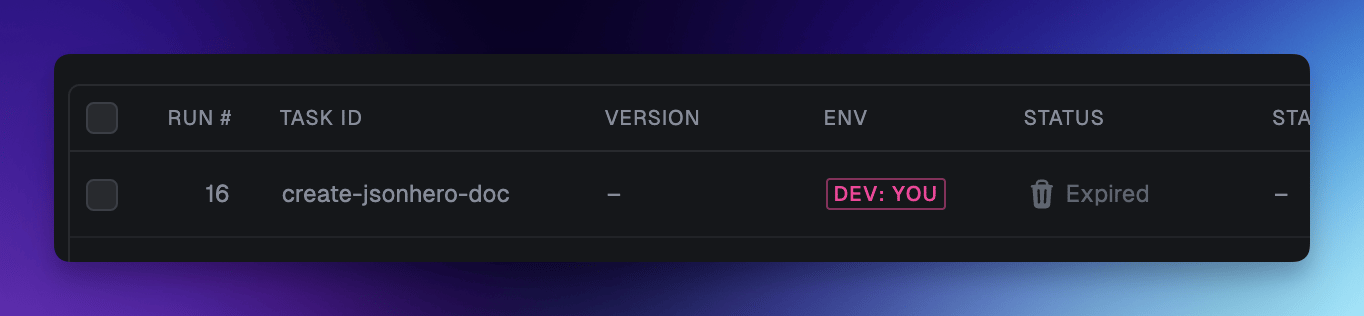
delay and ttl, the TTL will start counting down from the time the run is enqueued, not from the time the run is triggered.
So for example, when using the following code:
- The run is created at 12:00:00
- The run is enqueued at 12:10:00
- The TTL starts counting down from 12:10:00
- If the run hasn’t started by 13:10:00, it will be expired
ttl option only accepts durations and not absolute timestamps.
On Trigger.dev Cloud, there is a maximum TTL of 14 days. If you don’t specify a TTL in staging or production, runs automatically get a 14-day TTL. If you specify a TTL longer than 14 days, it is clamped to 14 days. See Limits — Maximum run TTL for details.
idempotencyKey
You can provide an idempotencyKey to ensure that a task is only triggered once with the same key. This is useful if you are triggering a task within another task that might be retried:
idempotencyKeyTTL
Idempotency keys automatically expire after 30 days, but you can set a custom TTL for an idempotency key when triggering a task:
debounce
You can debounce task triggers to consolidate multiple trigger calls into a single delayed run. When a run with the same debounce key already exists in the delayed state, subsequent triggers “push” the existing run’s execution time later rather than creating new runs.
This is useful for scenarios like:
- Real-time document indexing where you want to wait for the user to finish typing
- Aggregating webhook events from the same source
- Rate limiting expensive operations while still processing the final request
Debounce keys are scoped to the task identifier, so different tasks can use the same key without
conflicts.
debounce option accepts:
key- A unique string to identify the debounce group (scoped to the task)delay- Duration string specifying how long to delay. Supported units:s(seconds),m(minutes),h/hr(hours),d(days),w(weeks). Minimum is 1 second. Examples:"5s","1m","2h30m"mode- Optional. Controls which trigger’s data is used:"leading"(default) or"trailing"maxDelay- Optional. Maximum total time from the first trigger before the run must execute. Uses the same duration format asdelay
- First trigger with a debounce key creates a new delayed run
- Subsequent triggers with the same key (while the run is still delayed) push the execution time further
- Once no new triggers occur within the delay duration, the run executes
- After the run starts executing, a new trigger with the same key will create a new run
maxDelay:
By default, continuous triggers can delay execution indefinitely. The maxDelay option sets an upper bound on the total delay from the first trigger, ensuring the run eventually executes even with constant activity.
- Summarizing AI chat threads that need periodic updates even during active conversations
- Syncing data that should happen regularly despite continuous changes
- Any case where you want debouncing but also guarantee timely execution
maxDelay:
Consider delay: "5s" and maxDelay: "30s" with triggers arriving every 2 seconds:
Without
maxDelay, continuous triggers would prevent the run from ever executing. With maxDelay: "30s", execution is guaranteed within 30 seconds of the first trigger.
The
maxDelay value is evaluated from each trigger call, not stored with the original run. This
means if you pass different maxDelay values for the same debounce key, each trigger uses its own
maxDelay to check against the original run’s creation time. For consistent behavior, use the
same maxDelay value for all triggers with the same debounce key.- Saving the latest version of a document after edits stop
- Processing the final state after a series of rapid updates
triggerAndWait:
When using triggerAndWait with debounce, the parent run blocks on the existing debounced run if one exists:
Idempotency keys take precedence over debounce keys. If both are provided and an idempotency match
is found, it wins.
queue
When you trigger a task you can override the concurrency limit. This is really useful if you sometimes have high priority runs.
The task:
/trigger/override-concurrency.ts
app/api/push/route.ts
concurrencyKey
If you’re building an application where you want to run tasks for your users, you might want a separate queue for each of your users. (It doesn’t have to be users, it can be any entity you want to separately limit the concurrency for.)
You can do this by using concurrencyKey. It creates a separate queue for each value of the key.
Your backend code:
app/api/pr/route.ts
maxAttempts
You can set the maximum number of attempts for a task run. If the run fails, it will be retried up to the number of attempts you specify.
retry.maxAttempts value set in the task definition.
tags
View our tags doc for more information.
metadata
View our metadata doc for more information.
maxComputeSeconds
View our maxComputeSeconds doc for more information.
priority
View our priority doc for more information.
region
You can override the default region when you trigger a run:
machine
You can override the default machine preset when you trigger a run:
Streaming batch triggering
This feature is only available with SDK 4.3.1+
AsyncIterable or ReadableStream instead of an array. This allows you to generate items on-demand without loading them all into memory upfront.
/trigger/my-task.ts
yourTask.batchTrigger()yourTask.batchTriggerAndWait()batch.triggerByTask()batch.triggerByTaskAndWait()tasks.batchTrigger()
Handling batch trigger errors
When batch triggering fails, the SDK throws aBatchTriggerError with properties that help you understand what went wrong and how to react:
Detecting and handling rate limits
When you hit batch trigger rate limits, you can detect this and implement retry logic:Your backend
Handling errors inside tasks
When callingbatchTrigger from inside another task, you can handle errors similarly:
/trigger/parent-task.ts
For rate limit values and how the token bucket algorithm works, see Batch trigger rate limits.
Large Payloads
We recommend keeping your task payloads as small as possible. We currently have a hard limit on task payloads above 10MB. If your payload size is larger than 512KB, instead of saving the payload to the database, we will upload it to an S3-compatible object store and store the URL in the database. When your task runs, we automatically download the payload from the object store and pass it to your task function. We also will return to you apayloadPresignedUrl from the runs.retrieve SDK function so you can download the payload if needed:
We also use this same system for dealing with large task outputs, and subsequently will return a
corresponding
outputPresignedUrl. Task outputs are limited to 100MB.